


JLab
4.21.27K Reviews
App Specs
- Version
- 2.0.0.7
- Updated On
- License
- Free
- Downloads
- 1,000,000+
- Developer
- JLab Audio
- Categories
- Tools
- Platform
- Android, iOS
Screenshots
 Analysis by AppCompare
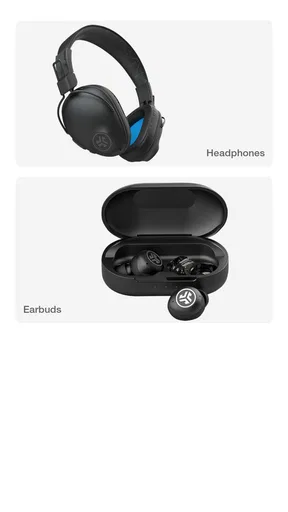
JLab is a free tools app from JLab Audio that I found most useful when I wanted one place to manage compatible JLab listening products rather than jumping between the phone’s Bluetooth menu and separate settings screens. It is aimed at people who already own JLab hardware, and its value depends heavily on whether the particular earbuds or headphones you use are supported. That makes it more focused than a general audio utility, but also more practical when it fits your setup.
My overall impression is that the app feels like a companion rather than a complete audio workstation. It helps bring product controls together, gives supported devices a clearer management path, and avoids charging an extra fee. At the same time, it is not something I would install simply to improve every pair of headphones. If your audio gear is from another brand, the app has little reason to stay on your phone.
How JLab feels during ordinary use
I find the app most useful when I treat it as a setup companion, not something I need to keep open throughout the day. That distinction helps set expectations: the real payoff is getting familiar with a compatible JLab device’s controls before I depend on them. From there, the next step is making the first connection calmly and checking that the app and accessory are both ready to work together.
Quick access matters more than flashy extras
The biggest benefit is convenience. Without a companion app, changing a headset’s available controls can mean remembering button combinations, searching through a manual, or accepting the factory setup. A dedicated JLab interface makes that process easier to understand when the product is compatible. I especially appreciate this during the first few days with new earbuds, when I am still learning what each tap, press, or hold does.
The app is listed in the Tools category, which describes its role well. I would not treat it as a music player, a replacement for the phone’s sound settings, or a universal manager for wireless accessories. It sits between the JLab product and the operating system, giving the hardware a more approachable control layer. That narrower purpose is also why the experience can feel simple once the initial setup is finished.
JLab Audio is the developer, and the app is free with an Everyone content rating. Those details make it easy to recommend as a first step for a family member who has bought compatible JLab earbuds but does not enjoy technical setup. The interface is less intimidating than asking someone to interpret a long list of Bluetooth options, although the exact usefulness still depends on the model.
What to expect from speed
For routine actions, I would set expectations at “quick enough” rather than “instant in every situation.” Opening a small companion app should not demand the same resources as a streaming service or a game, and the focused design helps it feel more direct. The moments that matter most are not dramatic launch times; they are whether the app recognizes the accessory, displays the relevant controls, and lets me leave without repeating the same setup.
Worth Reading Before You Choose

EA SPORTS FC Mobile 26 Is a Bigger Football Game, but It Takes Time

Flipboard Shows What News Apps Must Do Beyond the Feed

Switching to Android Auto Means Rethinking Your Driving Routine

Google Calendar Makes a Crowded Week Easier to Manage

Ludo King Makes the Most of the Minutes Between Plans

Baby Panda World Brings Quick Play to Modern Phones, but Its Game Library Feels Busy
One practical tip is to open the app with the JLab device awake and close by. That removes an avoidable variable when the phone is trying to find a sleeping earbud case or a headset that has already disconnected. If a control screen appears incomplete, I would first check the accessory’s connection state before assuming the app itself is broken.
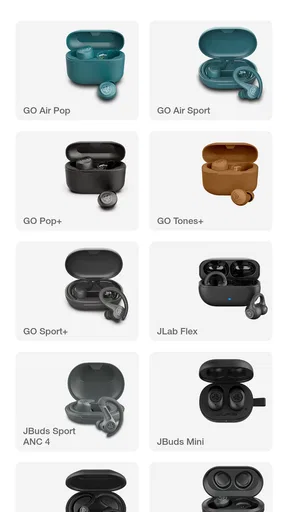
The current version is 2.0.0.7, and the recent direction of the app is important because compatibility is not fixed to a single small group of products. The update adds compatibility for more models in the JLab App. In everyday terms, that means an owner whose device was previously unsupported may have a better reason to revisit the app after updating, rather than dismissing it based on an older experience.
When the app is under heavier pressure
The app becomes more valuable during moments when I need to make several adjustments in one sitting. A new pair of earbuds may require pairing, checking available controls, and deciding whether the default behavior suits how I travel, work, or take calls. That is a heavier-use moment even though the app itself is not a demanding program. The real test is whether it keeps the process understandable while the accessory is connecting and disconnecting.
I would also use it before leaving home, not for the first time on a train platform. A quiet setup session gives the phone and accessory time to establish their connection and lets me confirm that the controls I expect are available. This is a small workflow change, but it prevents the common frustration of trying to solve an unfamiliar device problem in a noisy place with limited attention.
For people who switch between several supported JLab products, the app’s usefulness can grow because a single companion environment is easier to remember than a different procedure for every accessory. Still, I would not assume that every model exposes the same controls. The app can organize the experience, but it cannot make two products identical. Model-specific differences remain part of the ownership experience.
Stability and recovering from connection trouble
Reliability here is less about long sessions inside the app and more about recovering gracefully when the accessory is not immediately available. Bluetooth devices can be asleep, out of range, connected to another device, or simply waiting in their case. When that happens, repeatedly tapping the same screen is rarely useful. My preferred recovery order is simple: bring the JLab product close, wake it, check the phone’s Bluetooth connection, and then reopen the app if necessary.
That workflow matters because a companion app should not become another source of confusion. If the product is connected but the app does not show the expected controls, restarting the app is a reasonable next step. If the connection itself is missing, changing screens inside the app is unlikely to solve it. Separating those two problems saves time and makes troubleshooting feel less random.
I would also avoid judging stability from a single failed connection. Wireless accessories can behave differently depending on whether they were just removed from a case, used with another phone, or left idle for a while. The app is most dependable when the underlying Bluetooth relationship is already healthy. That is a realistic limitation of this type of companion software, not necessarily a sign that the app is unusable.
Phone limits and compatibility checks
The minimum operating system is Android 7.0, so the app is accessible to people using older Android phones that still meet that requirement. That is helpful for anyone keeping a reliable older handset as a music device. On the other hand, meeting the operating-system requirement does not automatically mean every JLab product will work. The accessory model remains the more important compatibility question.
This is the first thing I would check before downloading: identify the exact JLab model, then confirm that it belongs to the app’s supported range. The update that expands compatibility is encouraging, but it should not be interpreted as a promise that every JLab product uses the same feature set. A product may connect for basic audio while offering a different level of control inside the companion app.
Older or less powerful phones may also make the experience feel less fluid when many other apps are active. I would not expect this tool to be a major resource burden, but keeping unnecessary apps closed can make connection troubleshooting easier. More importantly, the app is not a substitute for a phone with modern Bluetooth behavior. If your handset frequently drops wireless accessories, this companion cannot completely remove that limitation.
Storage and battery expectations are straightforward: this is a focused utility, not an always-open media platform. I would still avoid leaving it running when I am finished adjusting a product, especially on an older phone where every background process matters. Opening it only when I need to manage the accessory keeps the role clear and reduces unnecessary friction.
Who gets the most from it
The best match is someone who owns compatible JLab earbuds or headphones and wants a friendlier way to manage them. It is particularly useful for people who dislike memorizing touch controls, households with more than one supported JLab product, and listeners who want to check what their device can do instead of relying on trial and error.
Imagine using wireless earbuds on a weekday commute. Before leaving, I would connect them at home, open the app to review the available device controls, and make sure the earbuds are responding as expected. If something looks wrong, I can deal with it while I have time and a stable connection. That preparation is more valuable than opening the app repeatedly during the journey, when the phone may be competing with other wireless connections and my attention is elsewhere.
The app can also help a less technical user feel more independent. Instead of asking someone else how to configure a JLab accessory, they have a dedicated place to explore the product. I would still explain that settings may vary by model, because a simple interface can create the expectation that every JLab device offers the same options.
Who should choose another approach
If you use headphones from several unrelated brands, the phone’s built-in Bluetooth settings may be more useful as a central starting point. Installing a separate manufacturer app for every accessory can create clutter, and JLab’s focused design is not an advantage when there is no JLab hardware to manage.
I would also skip it if you are looking for advanced audio production tools, a universal equalizer, or a replacement for a streaming app. That is not what this product is for. Its strength is the relationship between supported JLab hardware and the phone, not broad control over every sound source.
Another reason to hesitate is a strong preference for completely manual operation. If you are happy with factory controls and never change anything, the app may be useful only during initial setup. In that case, its free price removes the financial downside, but it may not justify taking up attention or storage on a phone you prefer to keep minimal.
How it compares with the usual alternatives
The most obvious alternative is using only the operating system’s Bluetooth menu. That approach is fine for pairing, reconnecting, and checking whether audio is routed to the correct device. It is less satisfying when I want product-specific controls or a clearer view of what the JLab accessory supports. The phone menu is broader, while this app is more specialized.
A second alternative is remembering the controls from the product manual. Manual operation can be faster once memorized, especially for simple play and pause actions. The trade-off is that it becomes frustrating when I forget a gesture or switch to a different JLab model. The app is better as a reference and setup companion, even if I eventually use the physical or touch controls most of the time.
Some audio brands build large companion apps with many sections and a wide range of adjustments. Those can be better for users who want extensive customization, but they can also feel excessive when the only goal is to manage a pair of earbuds. JLab’s narrower purpose is easier to understand. I would choose it over a more elaborate alternative when I want a straightforward product companion, but not when I need a universal control center.
What I would do before relying on it
I would install the app, identify the exact JLab product, and complete the first connection in a calm environment. Then I would test the controls I actually use: playback, calls, and any product-specific actions that matter in daily life. Testing those actions immediately is more useful than assuming that a successful installation means the setup is complete.
If the app does not recognize the accessory, I would avoid endlessly reinstalling it. First I would check whether the product is already connected elsewhere, whether it is awake, and whether the phone’s Bluetooth screen shows an active connection. Only after those basics would I try reopening the app or repeating the pairing process. This order distinguishes an app problem from a connection problem and usually leads to a clearer answer.
For families, I would also write down the exact model name somewhere easy to find. That small detail becomes valuable when checking compatibility after an update or helping another person set up the same product. It is more reliable than describing the earbuds by color or shape, especially when several JLab models look similar.
My performance verdict
JLab is at its best as a focused, low-friction companion for supported JLab audio products. I like that it is free, accessible to a broad age group, and designed around a clear task instead of trying to become an all-purpose audio platform. The update adding support for more models also makes it worth reconsidering if an earlier version did not recognize your device.
My reservations are equally practical. The experience depends on model compatibility, Bluetooth conditions, and the age and behavior of the phone. It will not fix a weak wireless connection, turn unrelated headphones into JLab products, or replace specialized audio software. People who never change accessory settings may find that the app matters mainly during setup.
The app has an average rating of 4.2 from around 4.4 thousand ratings, with more than a thousand written reviews, and it has passed the million-install mark. Those figures suggest a well-established companion rather than an obscure experiment, while still leaving room for different experiences across devices and models. I would read that as reassurance, not a reason to ignore compatibility checks.
In the end, I would recommend it to a friend who owns a supported JLab headset and wants clearer control than the standard Bluetooth menu provides. I would suggest setting it up before a trip, testing the important actions at home, and treating the exact accessory model as the deciding factor. For that audience, it is a sensible free tool; for everyone else, the phone’s built-in settings are probably the cleaner choice.
Pros
- Straightforward access to product details
- support
- and warranty information.
- Useful for managing compatible JLab earbuds and headphones in one place.
- Firmware updates can improve performance and add features over time.
- Customizable sound profiles help tailor audio to different listening preferences.
- Clean interface makes essential device controls easy to find.
Cons
- Most features require a compatible JLab device to be useful.
- Some advanced controls may vary depending on the connected product.
- Bluetooth pairing can occasionally require restarting the app or device.
- Firmware updates may take several minutes and need a stable connection.
- Limited value for users who do not own JLab audio hardware.
FAQs for JLab
What is the JLab app used for?
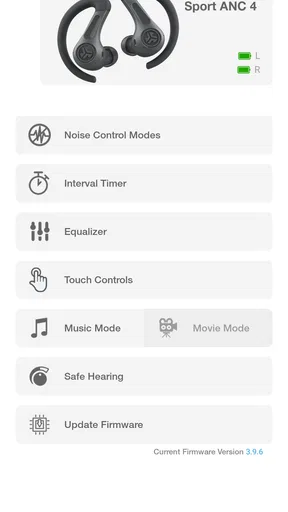
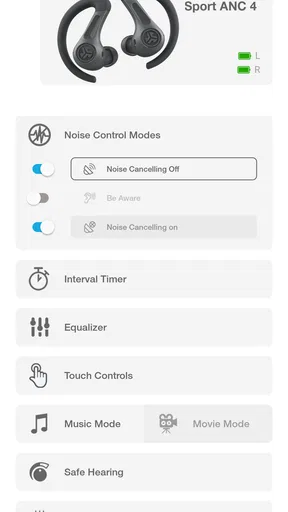
The JLab app is a companion application for compatible JLab wireless earbuds and headphones. After pairing your device, you can use the app to adjust the equalizer, choose or customize sound presets, control supported features, install firmware updates, and manage settings such as touch controls. Its exact options depend on the specific JLab product you own.
Which JLab headphones and earbuds are compatible with the app?
Compatibility varies between JLab models, so it is important to check your product name or model number before downloading. Many newer JLab Bluetooth earbuds and headphones are supported, but older products may offer limited functionality or may not appear in the app at all. The official JLab compatibility list is the safest way to confirm support.
How do I connect my JLab earbuds or headphones to the app?
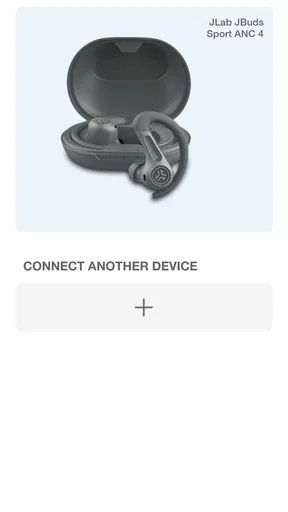
First, charge the earbuds or headphones and place them into Bluetooth pairing mode. Enable Bluetooth on your Android or iPhone, connect the JLab product through the device settings, and then open the JLab app. Follow the on-screen instructions to add the product. If it is not detected, restart Bluetooth, keep the device nearby, and remove old pairings before trying again.
Can I customize the sound and controls with JLab?
On supported products, the app provides useful customization tools for listening and everyday control. You may be able to select an equalizer preset, create a personal sound profile, change button or touch functions, adjust settings for different listening situations, and manage features such as safe listening or ambient sound. Available controls differ significantly by model.
Is the JLab app free and does it require an account?
The JLab app is generally available as a free download, and its main companion features are designed to work with compatible JLab audio products rather than requiring a subscription. Some versions or features may request permissions such as Bluetooth access, notifications, or location-related access for device discovery. Account requirements can vary, so review the current setup screen and privacy details.


